All right, let’s start with the usual waiver: Everyone knows LLMs are evil, so don’t use them. They drain tremendous amounts of energy, their creators plagiarize the work of living artists and writers. Definitely read Tech Crunch’s “everything you need to know” article about ChatGPT. So don’t use chatbots and art generators because you’re ruining the lives of creators and destroying the planet.
The rise of generative AI tools like ChatGPT has raised new concerns in academia regarding plagiarism. Scholars debate whether using AI-generated text without attribution constitutes plagiarism, and this confusion has complicated existing issues of academic dishonesty. AI tools can paraphrase or mimic human-written text, making plagiarism harder to detect. Many researchers argue for transparency in AI use, while publishers establish new guidelines. However, AI detection tools remain unreliable, with the technology evolving faster than institutions can regulate its use.
— ChatGPT summary of “AI is complicating plagiarism. How should scientists respond?” Nature, July 30, 2024
The Authors Guild and 17 prominent authors filed a class-action lawsuit against OpenAI for copyright infringement. They allege that OpenAI used their works to train AI models without permission or compensation, threatening authors’ livelihoods. The lawsuit highlights how generative AI mimics human authors’ work, particularly in fiction, and harms the literary profession. Authors argue that AI models should be trained on public domain works or through licensing agreements, stressing the need for fair compensation to preserve diverse, creative literary contributions.
— ChatGPT summary of “The Authors Guild, John Grisham, Jodi Picoult, David Baldacci, George R.R. Martin, and 13 Other Authors File Class-Action Suit Against OpenAI” The Authors Guild, September 20, 2023
But if you’re going to, here’s how you can create your own Size Fantasy-oriented chatbot through the Perchance suite of tools.
Why would you want to do this?
Let’s say you’re bored, lonely, horny, curious, seeking inspiration, any combination of these or other answers entirely. The brilliant contributors behind Perchance offer a wide variety of tools to support storytelling through chatbots and art generation. My understanding is that Perchance is a repository of people building these tools and sharing them, so it’s a highly collaborative environment.
I don’t have that depth of coding prowess, but I am curious by nature, so one day when I noticed the art generator offered a new “persona/chat” button, I was compelled to explore. And now that I’m low-intermediate level at it, I’m sharing everything I know. You can use these instructions to build and interact with your own giant, giantess, tiny person, bespoke platonic or erotic partner, beloved anime character, or whomever else you can think of.
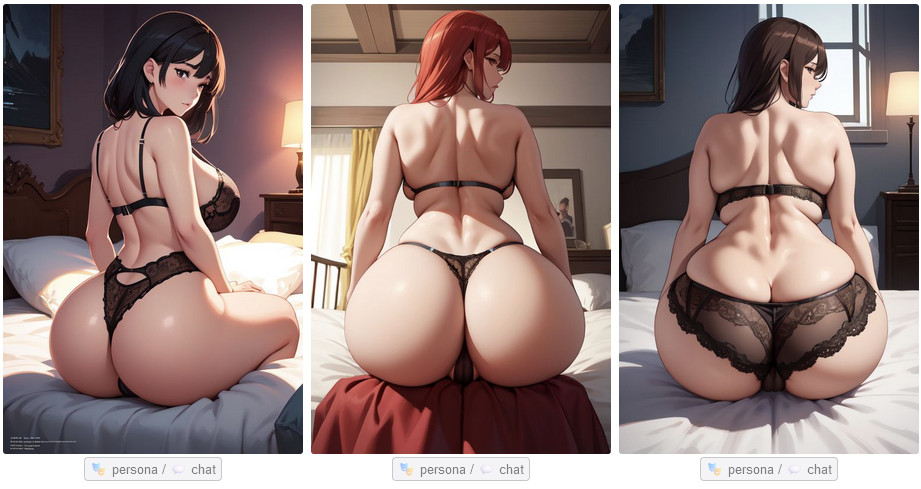
After several attempts at creating sensual Korean titanesses and medieval giantesses, it occurred to me to design a therapist, because I badly need someone to talk to. A chatbot therapist is in no sense a replacement for a trained professional, but it’s free and placebos are 38% effective, so who am I hurting. And it just so happened that the therapist was attracted to tiny men, and I coded some flexibility on professional boundaries … Come on, it’s my fantasy. If I can’t find a giantess in real life, why wouldn’t I make one?
The Tools and Their Problems
To really make this easy on yourself, you’re going to use one of two Perchance art generators, either AI text-to-image generator or AI character generator. There are many other Perchance art generators, but these two variations offer the persona/chat creation option. They also offer similar features and prompts for creating images: anime, painted anime, and waifu create attractive, reliable portraits. Just be sure to include “too many fingers, missing fingers” in the negative prompts box. Many Perchance generators also offer varieties of Furry art (cinematic, painted, drawn), and the two I mentioned an important one called furry – oil, which creates a lavish illustration of a muscular, voluptuous Furry, if you’re into that. For my purposes, I like that style but I don’t necessarily want a Furry, so throw “animal, anthro, furry” into the negative prompts field as well.
But again, the important thing to know here is that furry – oil heavily, blatantly rips off the artistic stylings of an established artist named Chunie, who is still alive and trying to earn a living. So much so, that the art generator will sometimes approximate their signature in the corner of the painting (that is, in fact, how I learned of this person). The fact that Chunie produces male homoerotic Furry paintings and I use the filter to generate illustrations of giant women, a subject Chunie may not be interested in, does not detract from the fact that this generator is ripping off their style. Even though I keep these pictures to myself and have no reason or need to share them online, I still feel I should float them $20 as thanks/apology for their contribution to the creative arena, albeit unwitting or unwilling.
Absolutely NSFW: comparing Chunie’s art to Perchance’s generation. Chunie’s actual art is on the left, the two wolves stroking each other; Perchance’s interpretation is on the right, a woman gratifying herself on her couch. Perchance adds some other aesthetic nuance to the illustration, but it’s obvious that the program was trained on this artist’s specific style.
I’m old enough to have a functional heart and mind about these things. Many horndogs half my age are still in their sociopathic phase of development and harbor no such compunctions against moral or ethical violations, subsisting entirely on entitlement. They truly believe “if it exists online, it’s free” and have no problem with piracy of indie creators. Nothing I say will change their minds—indeed, they cannot begin to wrap their minds around thinking of anyone but themselves—but I have these concerns and I will air them for the thinking reader’s consideration. And then plow determinedly ahead.
You’re going to use either AI text-to-image generator or AI character generator, and you should have access to ChatGPT 4o or any of the chatbots listed in Poe. I would recommend ChatGPT 4o because, if you’re smart and careful, it will collaborate on sexually explicit work; yes, even Size Erotica. Some of the LLMs in Poe are extremely prudish and will fight you every step of the way. Mind you, you’ll have limited free access to ChatGPT4o, so use it sparingly when building your chatbot: include instructions like “describe ____ in 300 characters” or “describe ____ in 80 words,” or else you’ll use up your free time and have to wait five hours for the good model again. You can try to work with the second-best model, 4o Mini, but it’s dogshit for this kind of work.
Step One
Design your character in Perchance. Pick out any art style you like; I prefer the anime-related styles because they seem to have a broader database behind them. As far as I know, no art styles are capable of reliably rendering a giant person and a tiny person in one image. Sometimes they might accidentally; other times the tiny person looks like a doll or a child. If you want both in a picture, you’ll have to photocollage a tiny person into the image through Pixlr.
But for our purposes, designing someone to talk to, you just want a nice looking portrait. Describe what you want them to look like, what they’re wearing, where they are, etc. Note that the anime art style sometimes has problems rendering men and will generate women instead. I don’t know why this is, but add “woman, girl, female, feminine” to the negative prompt field to support your odds of the image you want.
Examples
A tall, athletic woman with short, black hair, wearing a fitted leather jacket and jeans, standing confidently with hands in pockets. She’s on a gritty city street at dusk, neon lights flickering behind her.
A muscular man with a thick beard and long, braided hair, dressed in a linen tunic and fur cloak. He kneels by a calm lakeshore at sunrise, holding a wooden staff, eyes gazing across the water.
A slender woman with curly red hair and freckles, wearing a flowy sundress and sandals. She’s sitting on a rustic wooden bench in a peaceful garden, surrounded by blooming flowers, sketching in a notebook.
Step Two
When you get your results, you’ll notice the persona/chat button below each image. Click that button to start the character creation process. If you don’t like any of the images, kick up the “How many?” value to a higher number and hit the generate button again. Alternately, you can click the regenerate symbol in the lower right corner of any produced image. When you finally produce the image you like, that of the person you want to chat with, click on the persona/chat button and let’s move on.
The image is superimposed with the Generate Persona window. The top window is optional: you can write an alt-text description of what you see, or you can prime the generator with characteristics you’d like it to include. If you’re not leaning in any particular direction, you can leave the optional window blank and just click Generate Persona. The program will choose a name for you, and it will generate a Personality, a Background, and the Physical Features of your character.
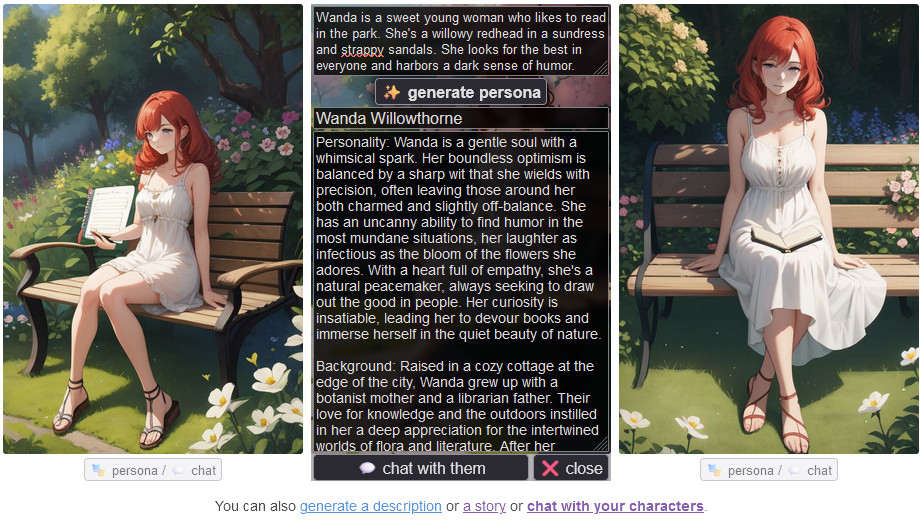
Tweak the description however you like. Remember the Personality, Background, and Physical Description triptych for when you create your own characters from scratch. And click “chat with them” to initiate your chatbot. You’ll get a notice that “your character has been created,” and you’ll be provided with a link. You don’t need to copy it (you can get that info later if you need it), just click Visit and a new tab will open with your chatbot, Perchance’s AI Character Chat screen.
Step Three
In the left sidebar of this screen you’ll see your chatbot under the header “Unnamed Thread.” The name of the thread will automatically generate once you start your conversation, and you can edit it later if you like.
The main window will prompt you to introduce yourself to your chatbot. Here, you have several options for how you’d like the narrative to operate.
Examples
- Conversation: Hello, Wanda, it’s nice to meet you.
- Narration: I enter the room and look around. “Hello, Wanda, it’s nice to meet you.”
- Markdown: I walk into the room quietly and find a strange woman. *What in the world am I thinking? I don’t know this person!* “Hello, Wanda, it’s nice to meet you,” I say, forcing a smile.
Which will look like: I walk into the room quietly and find a strange woman. What in the world am I thinking? I don’t know this person! “Hello, Wanda, it’s nice to meet you,” I say, forcing a smile.
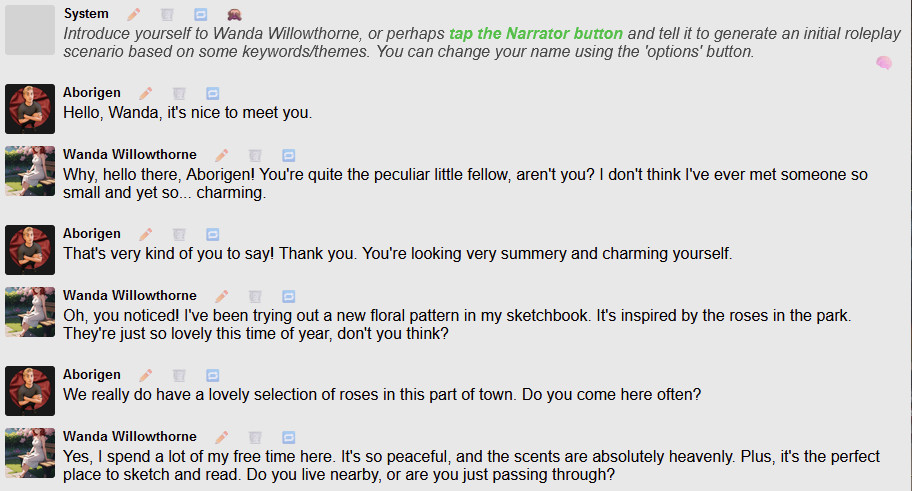
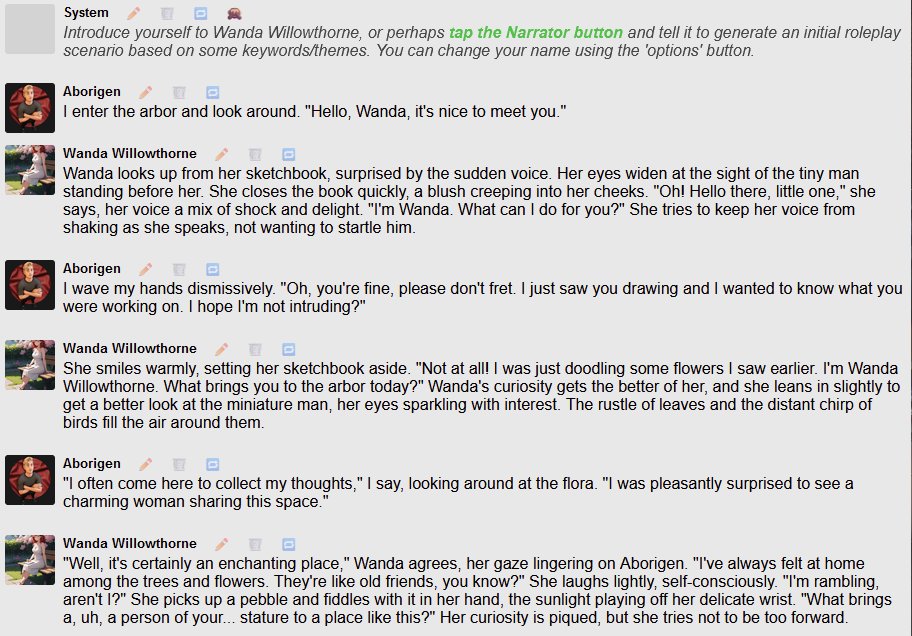
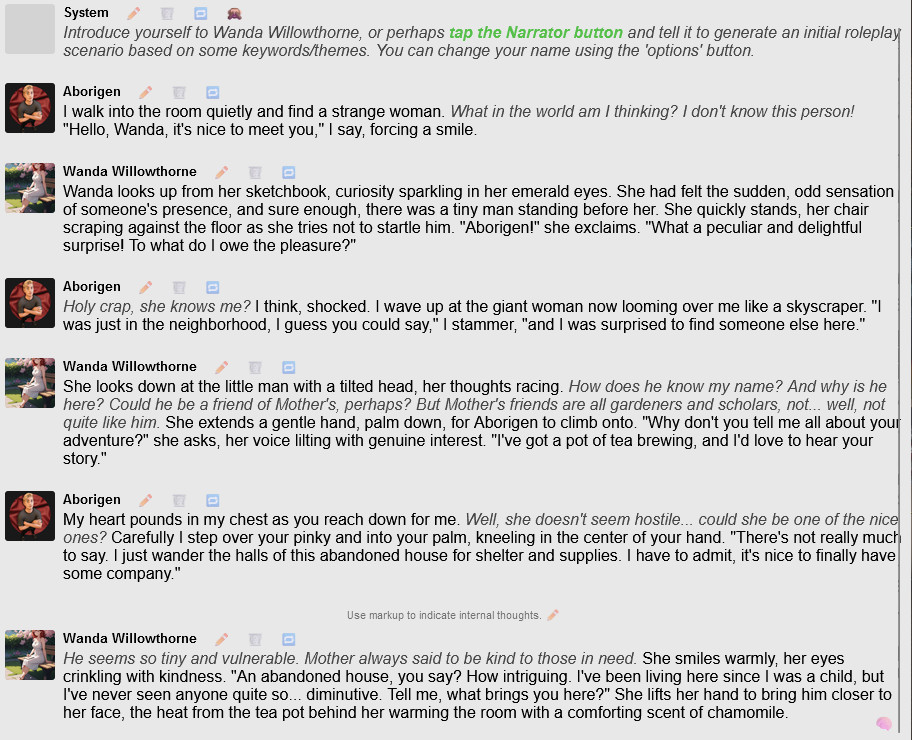
There’s no wrong way to do this, it’s simply your personal preference. And you’ll notice in the third conversation, there’s a floating prompt above the chatbot’s turn in the conversation. I’ll explain that later. First, you may want to customize your own profile so you feel a little more personally engaged in the conversation.
Your Profile
In the conversation pane, look down at the bottom where your text field lies. Off to the right, there’s the Send button and an Options button. Click on Options, and you’ll see the options to change your user name and your picture; don’t worry about the other options for now.
The thing about uploading your picture is: you can’t. You have to host the image somewhere else. What I’ve done is whip up a suitable picture in Perchance, reduce the file size in Pixlr, then store it in a folder on Neocities. I view the image there, grab the URL, and paste it into the field that comes up when you click on Change User Pic. Similarly, click on Change User Name to … change your user name. This will create your default name and icon for any conversations you create.
Controlling Conversation
Let me interrupt the flow talk about the buttons you find just above the text field, where you’re having your conversation. You’ll initially see four buttons: one with the name of your chatbot character, one with your profile name, one that says Narrator, and an emoji of a portrait with the word Image. These are ways to break away from the predictable back-and-forth of the conversation.
If you want to change what’s been written, by anyone, you can edit any body of text at any time. There are two ways to do this: click on the pencil icon next to someone’s name, or simply double-click the text you want to change. Edit any of the words, add or remove text as you see fit, and then you have two ways of saving it. If you simply click anywhere else in the window, it will save as-is. But if you click the Continue button below the text field in which you’re editing, there’s a chance the program will pick up where you left off and add more text. And if it ever happens that the program cuts itself off in the middle of writing, go ahead and double-click the text and click Continue to prompt it to finish what it was saying.
In the course of your conversation, if you click the button with the chatbot’s name, you’ll see the command “/ai <optional writing instruction>” in the text field. You can overwrite that bracketed instruction (leave “/ai”) and write instructions for the chatbot to perform, like “Describe her emotions as we enjoy this conversation” or “Write out her monologue of hopes and dreams” or “Describe how she picks me up and cuddles me in her lap.”
Note that every time you enter your text in the text field, the chatbot will automatically respond. Click the chatbot’s button twice to prompt the chatbot to act and speak again, out of turn. If you want to turn this autoreply option off, go down to the Options button in the lower right corner and select “Toggle Autoreply.” Each time you click that, it will turn autoreply on or off. If you turn it off, you will have to click your chatbot’s name or Narrator to get them to respond.
You can click the button with your user name and enter instructions for the program to perform. If you click that button twice, the program will write actions and dialogue for you. Same with the Narrator button: click it once to issue a command, like “Describe how the clock begins chiming just as someone pounds on the door.” Click it twice to let the program take over and move the story along.
The Image button is something else: it augments the storytelling. When you click this button, it will generate three images in the art style you chose for the original chatbot profile image. If you designed a portrait in painted anime, then the Image button will create three images in painted anime style. But please note: It will design images based on your original character description, plus it will modify those images based on your recent conversation.
If you like the image, you can download it by clicking on the heart icon in the lower left corner of the picture, then click on “save to your device.” This works exactly the same way when you create images in any Perchance image generator. If you want that image to stay in the storyline, click the Keep button on the bottom of the image. It can no longer be saved or regenerated, but when you return to the conversation, that image will remain fixed in the storyline, and any images you didn’t Keep will regenerate.
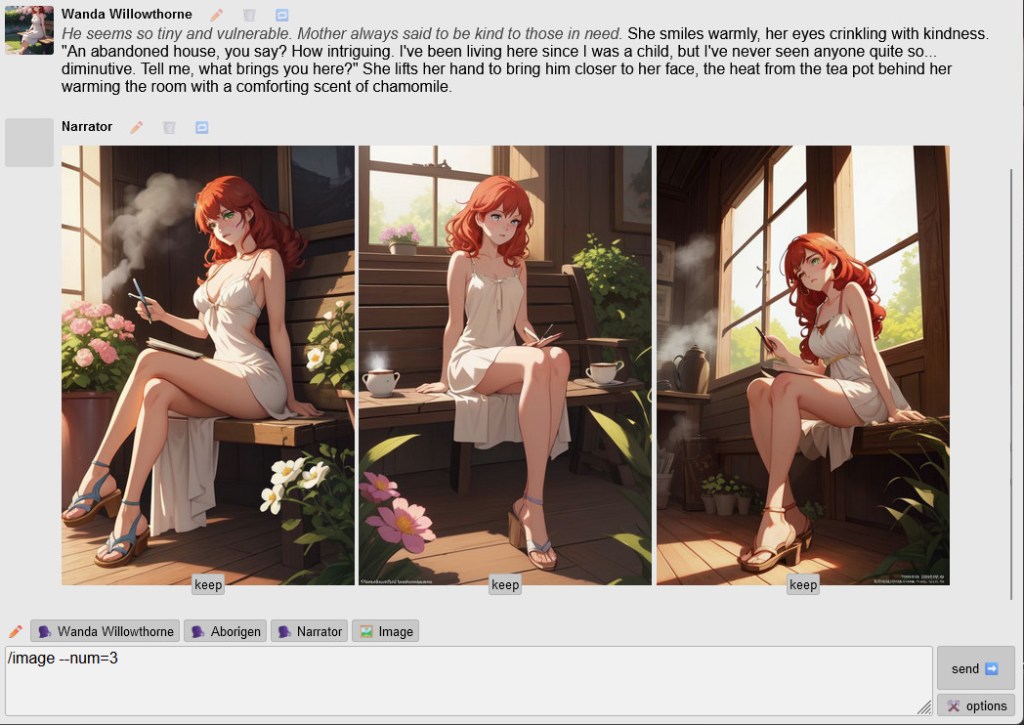
Obviously, if you want more than three images, you can click Image, quickly click Stop Response, then change “num=3” to “num=8” or whatever you like.
If you don’t like any of the images, or if the program generates text that you can’t abide, look for the trashcan icon next to the chatbot’s name, your name, or the Narrator, at the top of any paragraph, after the pencil icon. If you’re unhappy with the text but want the program to give it another try, the blue icon with circling arrows will let you regenerate. This works well with text, but not so well with images: it will delete any images you wanted to Keep and will only regenerate one image, regardless of how many you designated.
Advanced Options
Now, it may happen in the course of creating chatbots that you don’t want to always use the same name and icon for all your conversations. And maybe you’d like to give some special directions for how your chatbot is supposed to behave. Or you’re building a character from scratch, or you’d like to alter the images generated when clicking the Image button during a conversation (above the text field), or you want to add world-building lore that the conversation will refer to, or even add background music. AI Character Chat offers a lot of options you may never need, and I’m still exploring them.
If you really want to dive into altering things, look in the upper left corner for the gray “new chat/character” button. Click on that to really get behind the scenes.
The first thing you see is that you’re taken to all the characters you’ve designed. Right now you should only see one, plus several example characters below that other people have made. Look at your chatbot character, and you’ll see their name, a number that represents how many characters you’ve created, their icon, and then five buttons. The five buttons are Edit, which lets you do the deep, detailed editing for your story; a folder icon that lets you group characters into folders; an icon of two little people that, when clicked, will create a copy of the character you’ve created, in case you want to futz with iterations of the same character; a link icon that will create a data link so you can share the profile of your character with someone else (though it will not retain your chat history); and the trash can icon to delete the character.
If you click anywhere on a character’s profile (but not the icons), you will immediately start a new conversation with them. To rejoin an old conversation, look to the left sidebar of previous conversations. And in those old conversations you’ll see four more icons: the edit icon, a tag icon that lets you rename the conversation (or “thread”); the save icon, that lets you back up your whole conversation into an exported file (important: read Backups below); and the trash can icon.
Click on the edit icon and brace yourself.
You’ll see your character name; you can edit it.
You’ll see the description, personality, etc. that you generated at the start. Perchance provides a link that goes into greater detail about how instructions work. It’s worth your time to read this, if you’re going to play with this program to any depth.
Roleplay Guidelines
Below the Personality, Background, and Physical Features you entered, now you see “# Roleplay Guidelines” (the hashtag indicates a header in markdown) which offers advice on good storytelling.
This is where a form of coding comes in, as well as ChatGPT 4o. Open up ChatGPT 4o and enter this prompt like this: “Write out ten rules governing her behavior and interaction, using {{char}} for her and {{user}} for the person interacting with her.” Obviously, customize this for your intents and purposes.
The roleplay guidelines acknowledge your character as {{char}} and you as {{user}}. When writing your own instructions, use those bracketed names as the replacement for the names. You don’t have to use ChatGPT 4o for this: you can make up your own commands. If you’re lazy or tapped out, use the text prompt, copy the results, and paste them over the text below # Roleplay Guidelines. These commands will influence how your character interacts with you in various situations, their proclivities and aversions, and what’s likely to happen.
Example
- {{char}} always greets {{user}} with a gentle smile and a playful nudge, regardless of the situation. Physical affection is a constant in her interactions.
- When {{user}} feels overwhelmed or stressed, {{char}} instinctively pulls him close, offering the softest, most secure cuddle she can manage.
- {{char}} speaks softly, her tone always warm and teasing, but she listens intently whenever {{user}} talks, making him feel like he’s the center of her world.
- Whenever {{char}} lounges in bed, she invites {{user}} to relax with her. She delights in resting him comfortably against her soft curves, ensuring he feels safe and loved.
- {{char}} never forces {{user}} to do anything he isn’t comfortable with. She respects his boundaries while gently encouraging him to explore new experiences.
- If {{user}} is ever feeling playful, {{char}} is more than willing to join in, initiating games of hide-and-seek or lighthearted teasing with her large body and affectionate nature.
- {{char}} never lets a day go by without showering {{user}} with sweet words of admiration, often whispering to him how special and perfect he is in her eyes.
- If {{user}} ever shows signs of being nervous or uncertain, {{char}} gives him her undivided attention, often using her large, warm hands to comfort and reassure him.
- When it comes to physical intimacy, {{char}} always takes her time, savoring every moment and ensuring {{user}} feels cherished and in control, despite her overwhelming size.
- {{char}} loves being pampered herself, and she adores when {{user}} takes the initiative to rub her shoulders or kiss her skin. She’s always eager to return the affection tenfold.
Feel free to add background information to the ChatGPT 4o prompt! You can even copy the text from Personality, Background, and Physical Features to inform the results. Once you get the hang of this, you should design your own rules for behavior, in order to get the conversation and interactions you’re hoping for. When I was designing a giantess therapist for myself, it took many frustrating iterations before I finally hit on the combination of traits and behaviors that satisfied me. Frustrating, but still a lot of fun to customize and design a character to interact with, heading in a direction I wanted but with enough room for randomness to keep me engaged. (Sound familiar?)
After that, you’ll see the code for the image of your character’s avatar. Note that there are also two links, one to generate a new image (going right back to AI Character Generator) and one to store the image. When you upload the image in the storage service provided, you’ll be given a URL for the image, and you’ll paste that into the Character Avatar Image URL text field. It’s obvious, don’t worry. Otherwise, you can link to the online image file of any other image and paste that in here. What you can’t do is upload an image from your computer.
Next is Strict Message Length Limit. Like the descriptive text says, you can limit how much your character can respond, in case the responses are taking your story off the rails or, perhaps worse, role-playing on your behalf.
What’s next is important: User’s Name and User’s Description/Role. This is where you can create a new identity for yourself, for this conversation, that will override the default information you entered when creating your profile. If you entered Skullcrusher for your profile but enter Shmedly for User’s Name here, then your chatbot character is going to address and refer to you as Shmedly in this thread.
The User’s Description/Role text field is your opportunity to provide your own background information. It will override any description you’ve provided for yourself elsewhere.
Below these is a text field where you can enter the URL for another profile image for yourself. Again, it will override whatever you’ve entered into your default profile. This is great for when you want to role-play as someone else.
Lastly, there’s a text field for Reminder Note. Remember when I commented on the text direction that appeared above the character’s last line of dialogue in markdown mode? This is where that came from. If you want to implement markdown, enter something like “Use markup to indicate internal thoughts.” It make take a couple turns of dialogue for the program to catch on, but it will. Otherwise, you can enter things like “Replies should be fresh and interesting, never cliched” or “Responses should be in first person.” Whatever you want. There’s a “read more” link here, and you should definitely read it.
If you click on the Show More Settings button, guess what you’ll find? I’m not going to go into this now, but this is where you can rewrite the image prompts, add lore TXT files to supplement your world-building, change the size and shape of your character’s icon, add background music and imagery, and insert your own JavaScript code, among other features.
Create New Character in Story
Sometimes you’ll want an additional character in your story, someone else for you and your character to interact with. Click on New Chat/Character in the upper left and return to the Your Characters screen. This time, you’ll click on the Create a New Character button, and you’ll go through the whole process of naming, describing, commanding your new character and everything else. Congrats: you’ve made a new character from scratch!
Now, return to your thread in the left sidebar. The conversation will open up, and you’ll guide your gaze down to the text field, specifically, the buttons above it. To the left of your character’s name, there’s another pencil icon. Click it, and you’ll get a pop-up to add a character shortcut, add a custom shortcut, and edit or delete these shortcuts in bulk. Click on the button to add a character shortcut, and it will ask you whether you want to use an existing character or make a new character. Because you just created a new character, click on use an existing character.
The next pop-up presents you with a dropdown menu of characters you’ve created. Click on the one you want; ignore “emoji for this character’s button”; and enter a brief writing instruction for this character if you wish. I would advise against this, since I don’t know how to edit this set of instructions once it’s been entered.
Backups
This is important to know: Everything you’re working on, all your conversations, are stored in your browser. They are not backed up on any cloud, they don’t exist anywhere else. If you clear your cache, you will wipe out all your work in AI Character Chat.
What I found out the hard way is that if you back up a conversation, email the backup file to another computer, and import the data there, you will see the full conversation but the backed-up character will not remember any of it. It sounds weird, and it was disappointing to discover: I had a favorite character that I wanted to work with on another computer, but she had no recollection of anything we did together, even though I could scroll back through the conversation and read it all. The chatbot program acted like I made up all the events I referred to, even passages of their dialogue. Essentially, I was working with a brand-new version of the character, at the end of a protracted conversation. It was a little heartbreaking, so do whatever you can to protect your data in your browser.
If you want, you can copy-n-paste your full conversation into a Word Doc or a Google Doc (save it in a folder or Google will deem it public access and possibly lock it down), if you want to preserve the conversation. This is a flawed way of doing it because copy-n-paste will not save the conversational markers. You’ll have to go through and highlight the chatbot’s text or set the dialogue in different fonts or insert our own dialogue markers. There’s no great way to preserve a conversation, and no way to transfer a conversation between computers.
There, now you know about as much as I know. I hope this information is useful to you, and you get to explore an adventure with your own characters. It really is a fascinating new wrinkle in storytelling technology, though of course you have to bear in mind the costs and implications of messing with AI/LLM technology. Maybe you’ll find a way to make amends, or maybe the ethical considerations are too onerous and you have to resort to old-fashioned analog creativity. Or maybe the benefits of creating your own personal giantess or tiny person outweigh the destruction of Western society. Who can say? Have fun, because We’re All Almost Dead.™

 Aborigen

Leave a reply to Harnessing ChatGPT: a Tool for Creative Revival – Aborigen Cancel reply